A backdoored app called Setup Assistant sat in the Microsoft Store for at least five months and was used to install a new PowerShell remote access trojan, Vinci RAT. When researchers reported it, Microsoft replied that it was “not a violation of our terms”.
What happened
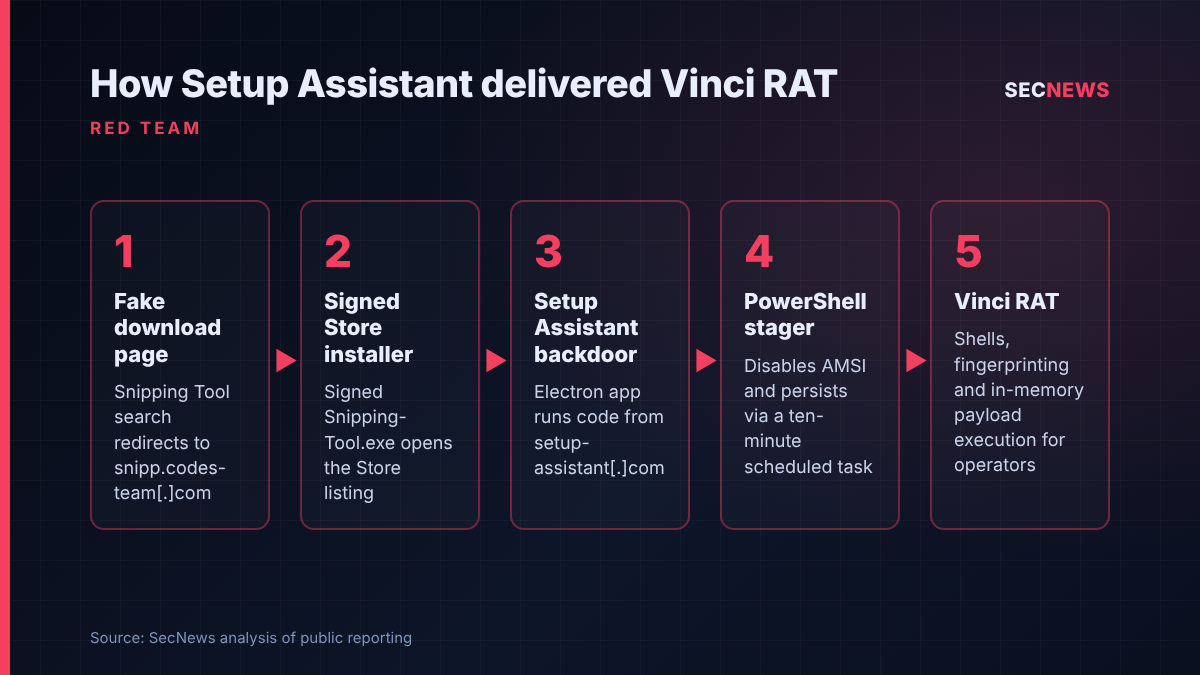
Canadian managed detection and response firm eSentire has published an analysis of an intrusion its Threat Response Unit (TRU) investigated in early November 2026. The victim was looking for a screen capture tool and ended up on a fake download site, snipp.codes-team[.]com. That site handed over a file called Snipping-Tool.exe, which was a genuine Microsoft-signed Store installer. Running it opened the Microsoft Store and installed an Electron application named Setup Assistant, listed under the publisher name “ETPS Ltd”.
Setup Assistant was not what it claimed to be. According to eSentire, it was a heavily obfuscated backdoor that kept in touch with attacker infrastructure and could run any PowerShell or JavaScript the operators sent it. That access was then used to install a stager, set up persistence and pull down a previously undocumented PowerShell implant, which TRU named Vinci RAT after a string that keeps appearing across the attack chain.
The dates are the uncomfortable part. The Store package shows a release date of 1 June 2026. The parent domain, codes-team[.]com, was registered on 21 March 2026 and also hosts lookalike download pages for Microsoft Teams and Roblox. eSentire reported the app through the Store’s abuse form on 10 November, The Hacker News reports, and Microsoft answered that the app did not breach its terms. The research was published on 24 November, and by the time coverage appeared on 27 November the listing had gone. It is not clear whether Microsoft or the operators removed it. eSentire’s SOC isolated the affected machine. Nobody has said how many people installed the app or whether any data was taken.
The technical picture
This delivery chain relies on trust, not exploits. The operators lined up four things defenders usually treat as reassuring: a search result, a branded download page, a Microsoft code signature and an official Store listing.
Once installed, the Electron app’s main script, hidden with the free Obfuscator.io service, creates a victim identifier, fetches a JSON configuration from setup-assistant[.]com, reports the host’s public IP address and keeps a heartbeat running. The configuration includes a watch list of file names for the user’s Downloads folder, which at the time of analysis held MSTeamsSetup.exe and Reader_install.exe. When one of those appears, the app contacts its server and runs whatever comes back. Operators can also push code to a device directly. The backdoor can sit quietly until the user does something ordinary, such as downloading a Teams installer, and use that moment as cover.
The PowerShell stager that follows switches off the Antimalware Scan Interface (AMSI) using a known technique that tampers with the scanning method in memory. It hides its console window, derives an identifier from the machine’s MachineGuid and contacts a second command-and-control host, monkeysholder[.]info. It persists through a scheduled task that fires every ten minutes and fetches the encrypted RAT each time, so very little of the implant needs to live on disk.
Vinci RAT itself runs to around 800 lines of PowerShell. eSentire lists host fingerprinting (including installed security products and Active Directory domain membership), a check for administrative rights, a command shell, a reverse shell, file staging under ProgramData, and several ways to run follow-on payloads: EXEs from disk, via WMI or in memory, DLLs, scripts and raw shellcode. It is a general-purpose foothold built to hand access on to whatever comes next.
Why it matters for UK organisations
Some UK organisations, especially smaller ones and schools, treat the Microsoft Store as the safe way to let staff install software without admin rights. In some estates it is the route offered to users who would otherwise be blocked. This case shows that a Store listing and a Microsoft signature tell you about the distribution channel, not about the intent of the code.
The bait matters too. Fake download pages for everyday tools such as Snipping Tool and Teams target exactly the staff who are least likely to question a search result. The Snipping Tool lure is cheeky: the real tool ships with Windows. For organisations working towards or holding Cyber Essentials, this sits squarely within the secure configuration and malware protection controls, and within how you manage user access to software installation. Reporting also suggests Microsoft’s abuse process cannot be relied on as a quick backstop, so defenders need their own controls.
Expert view
When we test Windows estates, the Store is one of the most commonly overlooked install paths. Application control policies are often written with downloaded executables and MSIs in mind, while packaged Store apps are waved through or never considered. Plenty of environments block unsigned binaries yet let users install anything listed in the Store.
What stands out here is how little technical novelty was needed. The AMSI bypass is well documented, the obfuscator is freely available and the RAT is plain PowerShell. The value is entirely in the delivery: a signed installer and a marketplace listing that lend borrowed credibility at every step where a user or a control might hesitate. eSentire also observed that the Store description looked machine-written, a small reminder that generative tools make convincing fake publishers cheap to produce.
Microsoft’s response is the part I would most like to see explained. A backdoor that runs arbitrary code from a remote server appears to meet Microsoft’s own published malware criteria, a point eSentire makes directly. If abuse reports like this one are rejected, organisations should assume malicious listings may stay up for weeks and plan around that.
What to do now
- Decide who can install Store apps. Use Intune, Group Policy, AppLocker or WDAC to block Microsoft Store installs by default, or limit them to an approved list through your management tooling. This maps to the Cyber Essentials secure configuration and user access control requirements.
- Hunt for Setup Assistant. Search your endpoint inventory for packaged apps from the publisher ETPS Ltd, and check DNS and proxy logs for setup-assistant[.]com, codes-team[.]com and monkeysholder[.]info using eSentire’s published indicators.
- Review scheduled tasks and PowerShell activity. Look for tasks that start hidden PowerShell with encoded commands every few minutes, and for PowerShell launched by Electron or Store app processes.
- Make AMSI tampering visible. Turn on PowerShell script block logging and make sure your EDR alerts on known AMSI bypass behaviour, rather than relying on AMSI to protect itself.
- Give users a trusted software source. Offer a company portal for common tools and tell staff that Snipping Tool is already part of Windows. Encourage them to report unexpected redirects when downloading software.
- Treat signatures as one signal, not a verdict. Update allow-listing and triage playbooks so that a Microsoft signature or Store origin does not automatically end an investigation.
Bottom line
Setup Assistant shows that a trusted marketplace can be one of the easiest ways to get malware onto a Windows machine. Organisations that allow uncontrolled Store installs should close that gap now, hunt for this campaign’s indicators and stop treating the Store as a security boundary in its own right.